Adding Anime
How to add and manage anime entries in HiAnime, including taxonomies and auto-import from MyAnimeList
Anime Post Type
HiAnime adds a dedicated Anime post type to WordPress. All anime series, movies, OVAs, and other entries are managed here — completely separate from regular WordPress posts or pages.
Access it via Anime in the WordPress admin sidebar.
Setting Up Taxonomies First
Before adding anime, set up your taxonomy terms. These are shared across all anime entries.
Genres
Go to Anime > Genres and add your genres.
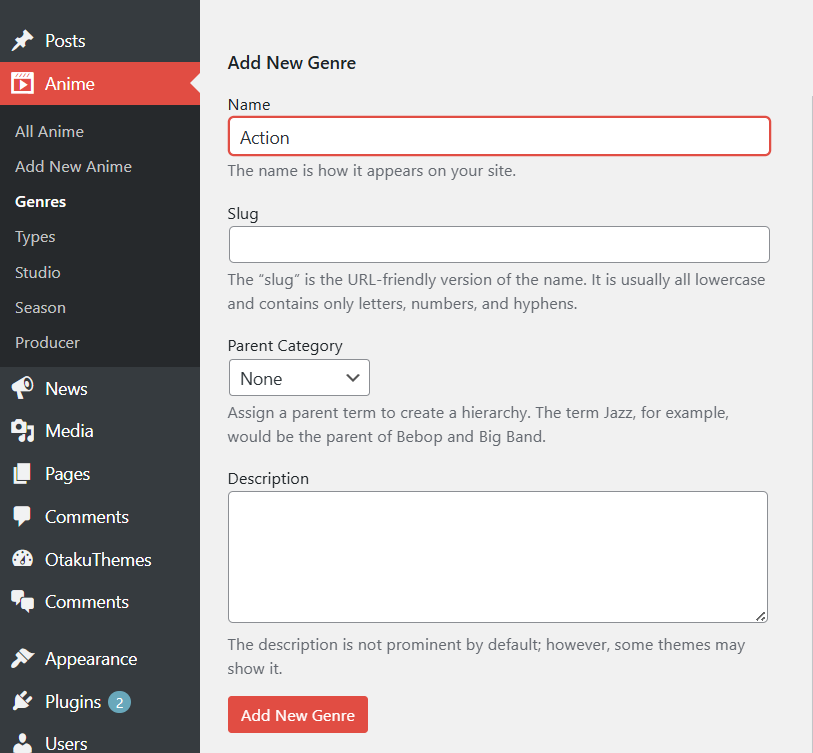 Anime — Genres
Examples: Action, Adventure, Comedy, Drama, Fantasy, Horror, Isekai, Romance, Sci-Fi, Slice of Life, Sports, Supernatural
Types
Go to Anime > Types to manage anime format types.
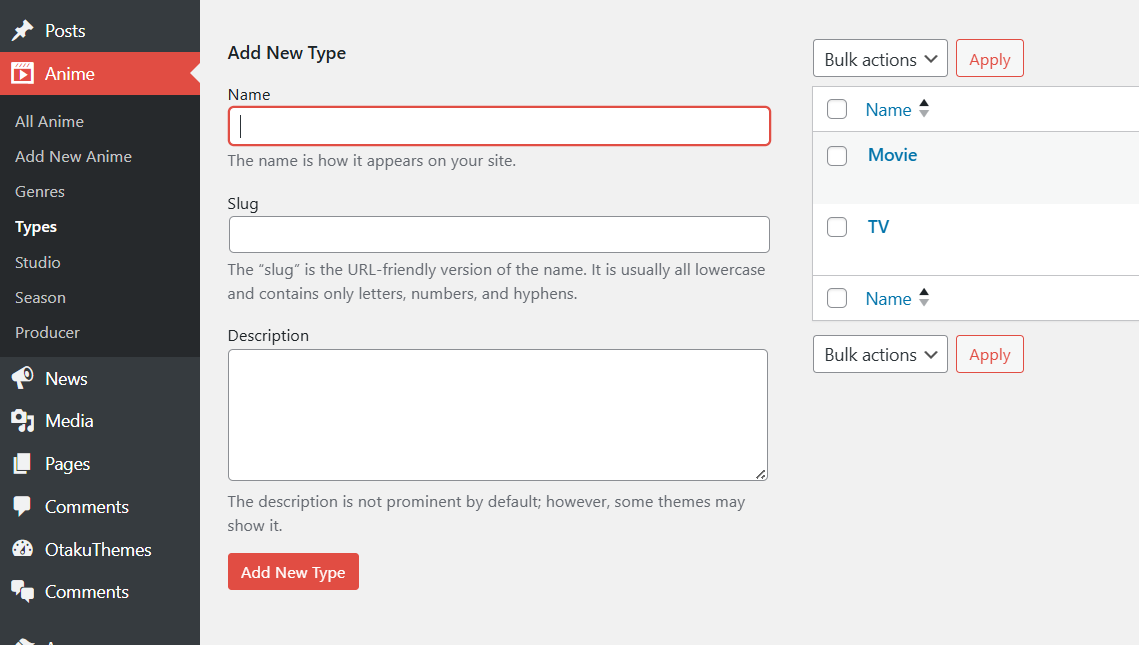 Anime — Types
The demo import includes Movie and TV by default. Add others as needed: OVA, ONA, Special, Music
Studio
Go to Anime > Studio and add production studios.
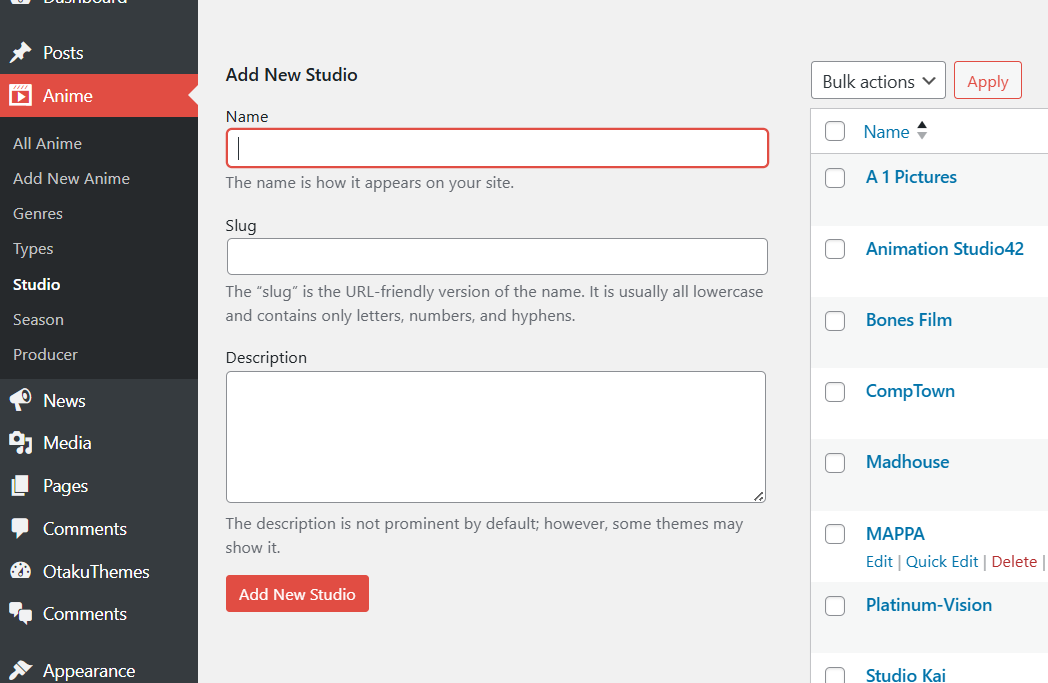 Anime — Studio
Examples: MAPPA, Bones Film, Madhouse, Studio Ghibli, Toei Animation, A-1 Pictures
Season
Go to Anime > Season and add airing seasons.
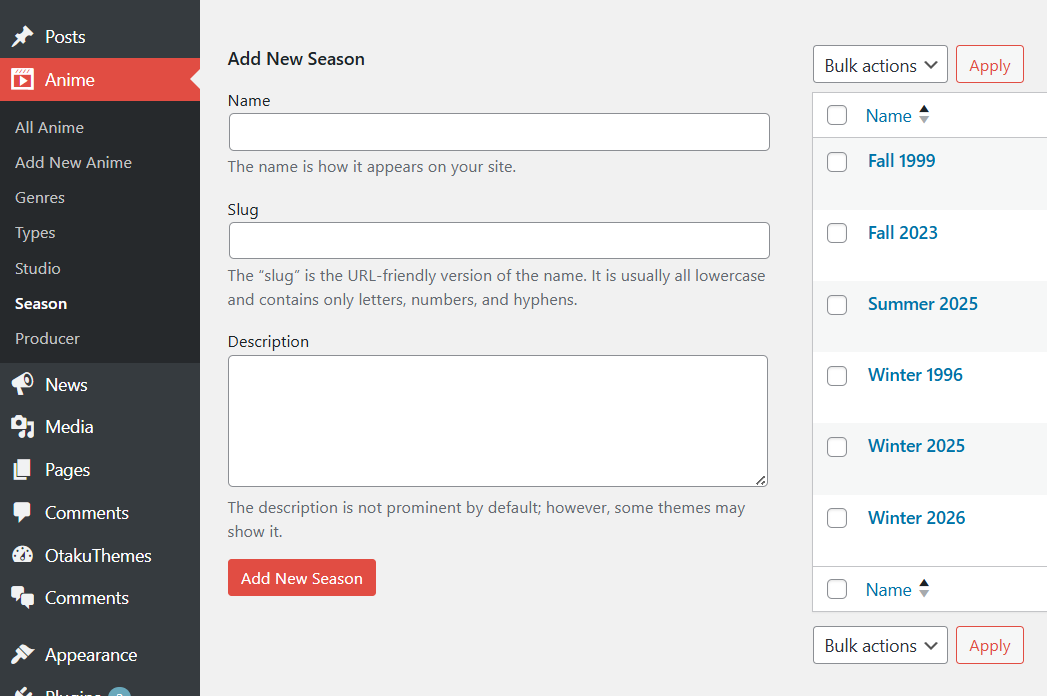 Anime — Season
Examples: Winter 2025, Spring 2025, Summer 2025, Fall 2025
Producer
Go to Anime > Producer and add producers/distributors.
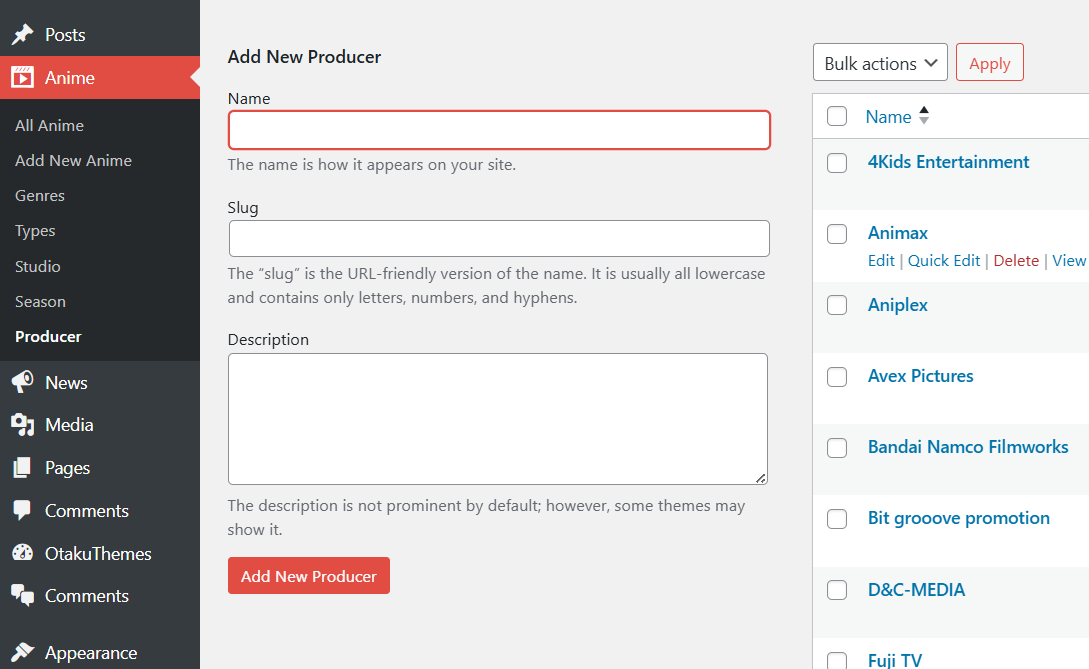 Anime — Producer
Examples: Aniplex, Animax, Bandai Namco, Crunchyroll, Netflix
Adding a New Anime
- Go to
Anime > Add New Anime - Enter the anime title at the top
- Write the synopsis/description in the main content editor
- Set the featured image (the anime poster/cover art)
- In the right sidebar, assign: Genres, Types, Studio, Season, Producer
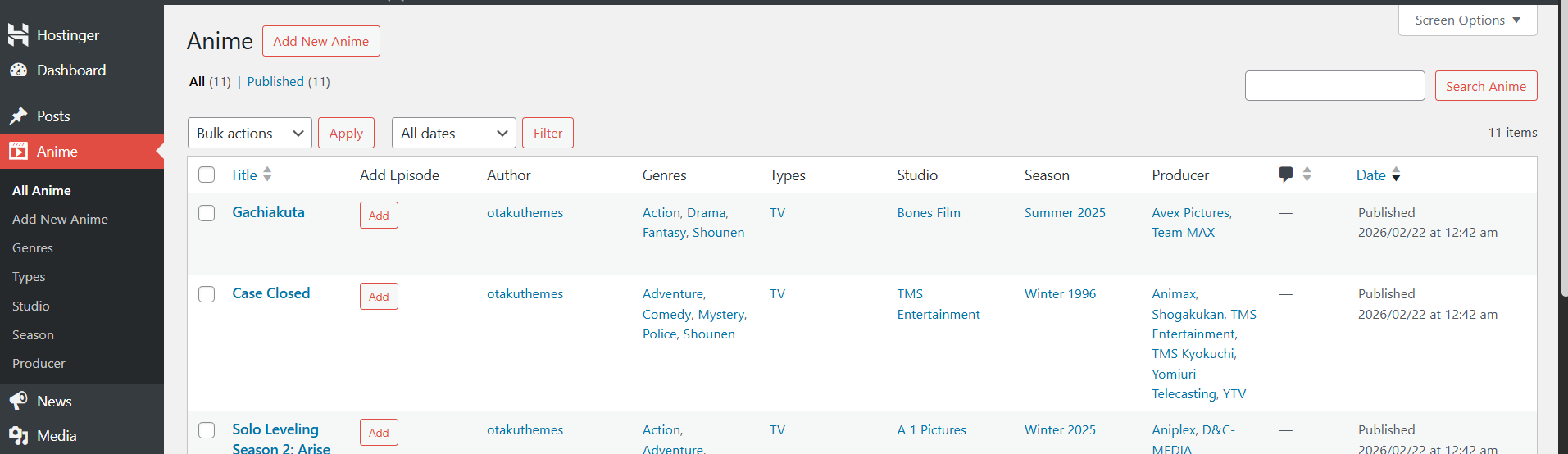 All Anime List
Custom Meta Fields
Below the editor you'll find the anime's custom meta fields. Fill in the relevant details:
Related Series & Schedule
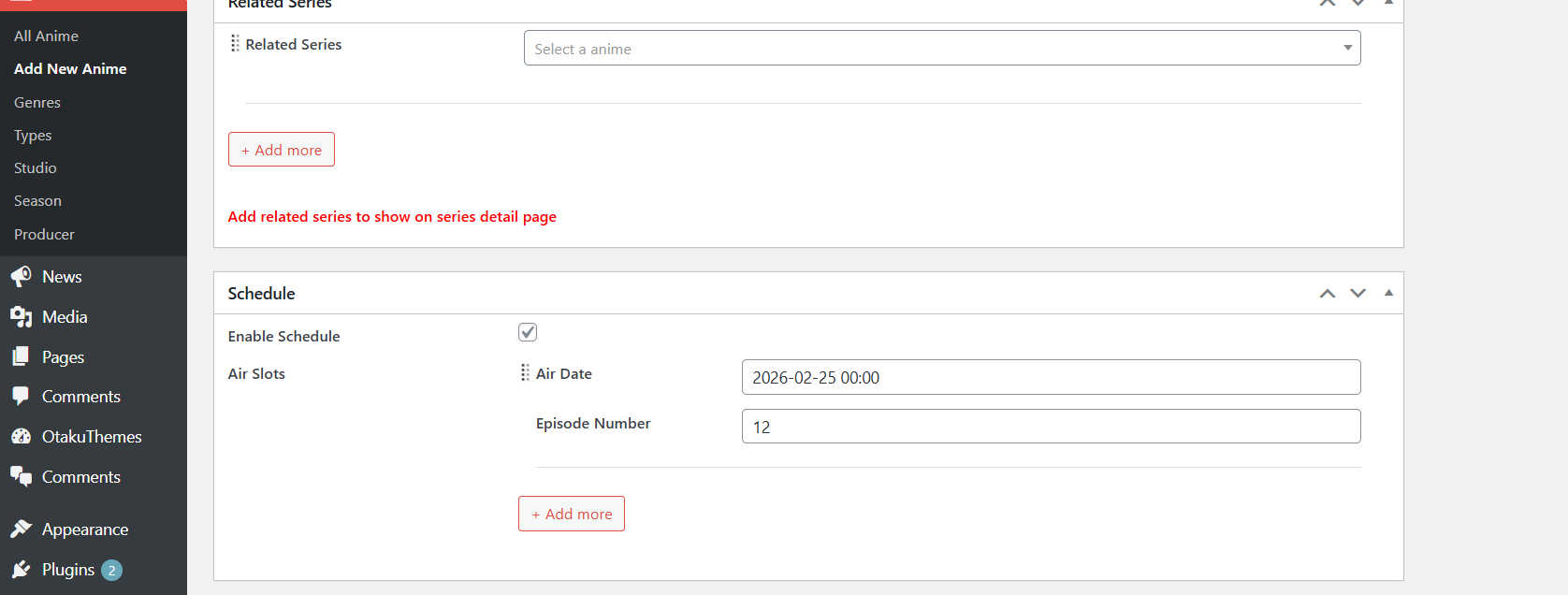 Anime — Related Series & Schedule
- Schedule — Enable if this anime is currently airing, then set the air date and episode number
- Related Series — Link to other anime entries that are related (prequels, sequels, spin-offs)
Seasons
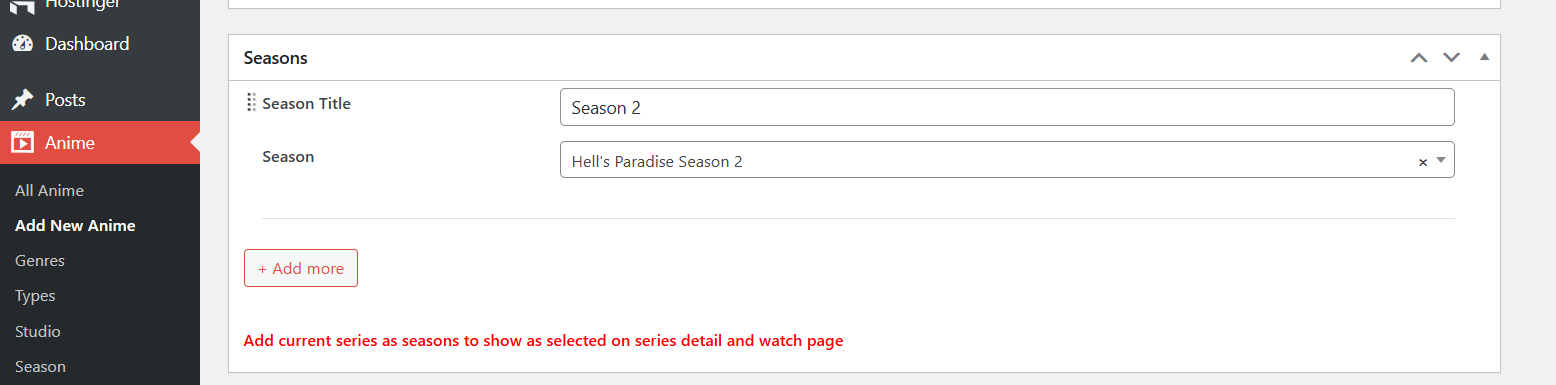 Anime — Seasons
Add season entries to group multi-season anime together. For each season:
- Season Label — e.g.
Season 1,Season 2 - Anime — Select the linked anime entry for that season
Related Series
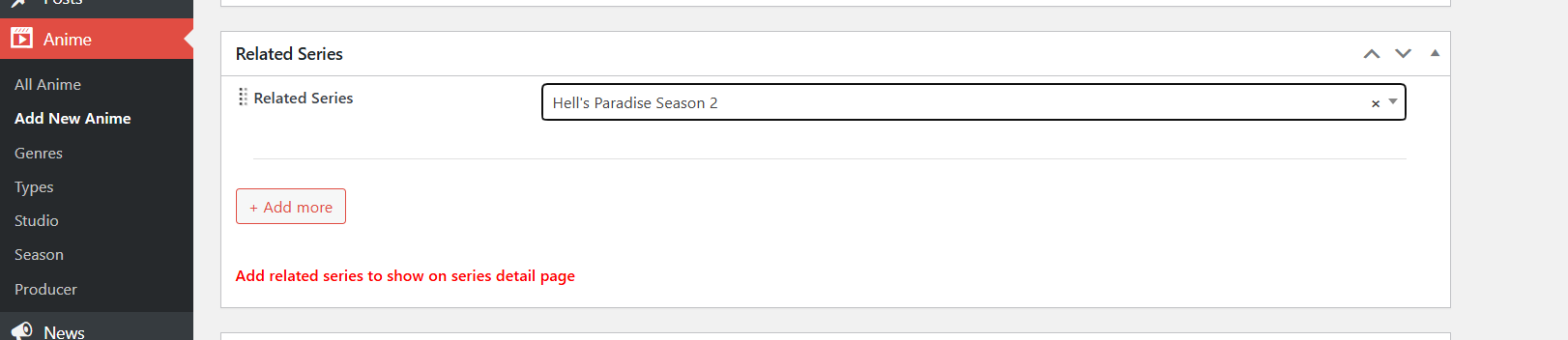 Anime — Related Series
Add individual links to related anime, with a relationship label (e.g. Prequel, Sequel, Side Story).
Auto-Import from MyAnimeList
HiAnime can automatically fill in anime metadata by fetching data from MyAnimeList.
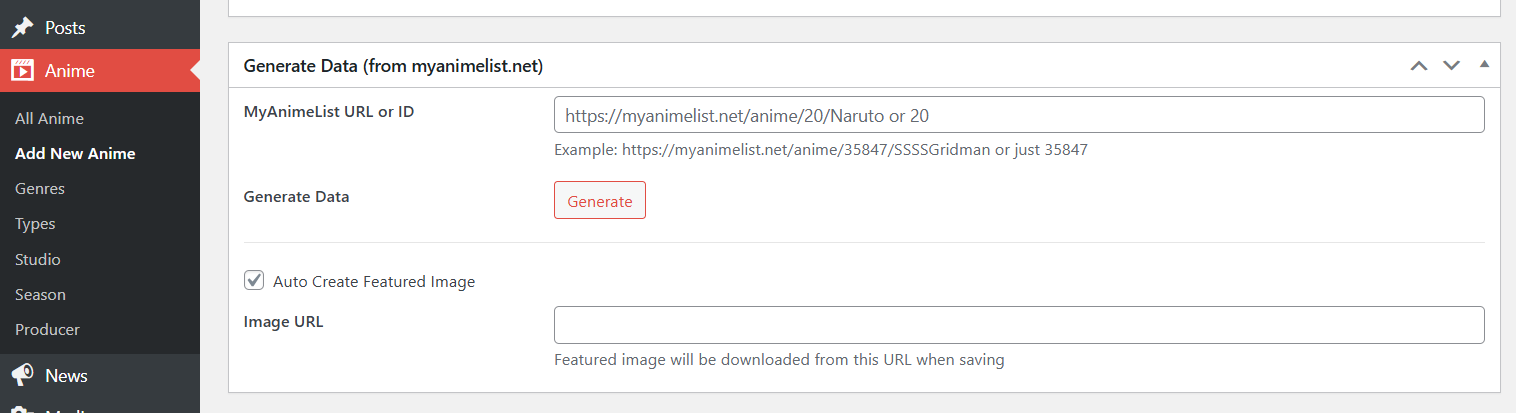 Anime — Generate Data from MyAnimeList
- In the Generate Data (from myanimelist.net) metabox, enter either:
- The full MAL URL (e.g.
https://myanimelist.net/anime/20/Naruto) - Or just the MAL ID (e.g.
20)
- The full MAL URL (e.g.
- Check Auto Create Featured Image to automatically download the poster image
- Click Generate
- HiAnime will fill in: title, synopsis, genres, type, studio, season, producer, and poster
- Review the fields, make any adjustments, then click Publish
The MyAnimeList import uses cURL to fetch data. If it fails, verify that the cURL PHP extension is enabled on your server. See System Requirements.
Managing Existing Anime
Go to Anime > All Anime to see the full list of anime entries.
From this list you can:
- Edit — Click an anime title to edit it
- Add Episode — Use the quick-add button to add an episode for that anime directly
- Trash — Delete an anime entry (associated episodes are not automatically deleted)
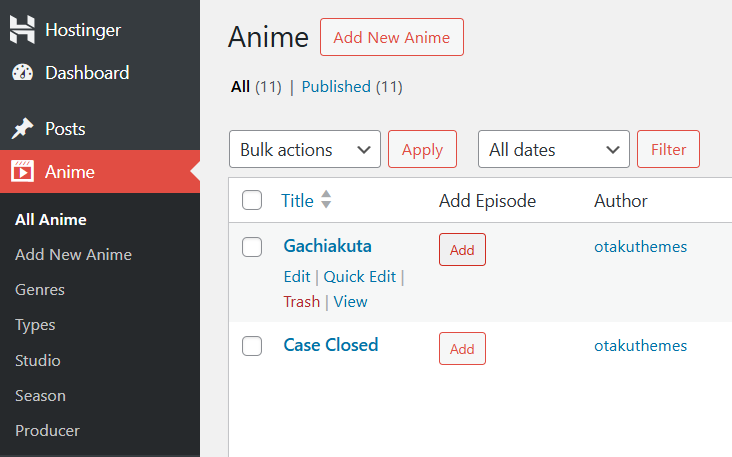 All Anime List
Deleting an anime entry does not automatically delete its associated episodes. Delete episodes separately from Posts > All Posts if needed.