Import demo content to quickly populate your HiAnime site with sample anime, episodes, and pages
Updated February 22, 2026
OtakuThemes Team
Demo Import Tab
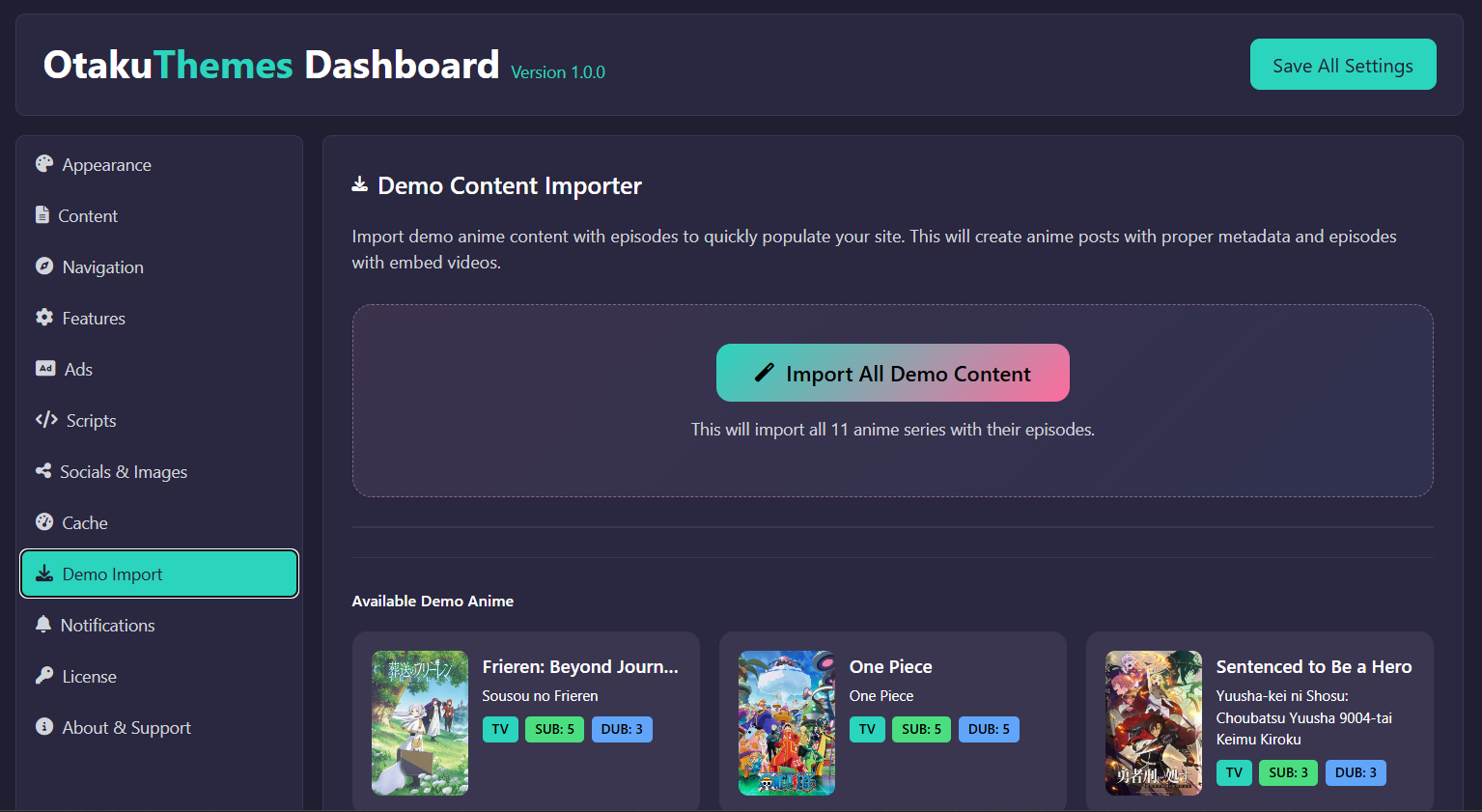
The Demo Import tab provides a one-click importer that populates your site with sample anime entries, episodes, pages, menus, and widgets — letting you see HiAnime in action immediately without manually creating content.
Go to OtakuThemes > Demo Import to access this.
OtakuThemes Dashboard — Demo Import Tab
Before You Import
Best Used on a Fresh Install
Run the demo import on a fresh WordPress installation to avoid conflicts with existing pages, menus, or content. Importing on a site with existing content will not delete your content, but may create duplicate pages or menu items.
Meta Box Must Be Active
The Meta Box plugin must be installed and activated before running the demo import. The import creates anime entries with custom fields that require Meta Box to function.
How to Import
Go to OtakuThemes > Demo Import
Review what will be imported
Click the Import button
Wait — the import may take 30–90 seconds depending on your server
Once complete, you'll see a success confirmation
What Gets Imported
The demo import creates:
Sample Anime — A set of anime entries with populated metadata (title, genres, type, studio, poster, etc.)
Sample Episodes — Episode entries linked to the demo anime
Pages — Front page, anime archive page, and other key pages
Menus — A pre-configured navigation menu assigned to the menu locations
Widgets — Sidebar widgets pre-configured with HiAnime widget types
Reading Settings — Sets the front page to the imported homepage automatically
After Importing
Go to Settings > Permalinks and click Save Changes (flushes rewrite rules so anime/episode URLs work)
Go to OtakuThemes > Cache and click Clear Cache
Visit your site's homepage to see the demo content in action
Replacing Demo Content
The demo content is for demonstration only. Replace the sample anime and episodes with your actual content, and delete the demo entries once you're set up.
Troubleshooting Import Failures
If the import fails or stops partway:
Increase PHP limits — The import requires adequate memory and execution time. In wp-config.php:
define('WP_MEMORY_LIMIT', '256M');
Or ask your host to increase max_execution_time to at least 300 seconds.
Deactivate other plugins — Some plugins can conflict with the import process. Try deactivating non-essential plugins temporarily.
Try again — The import is generally safe to re-run if it failed partway.
 OtakuThemes Dashboard — Demo Import Tab