Features
Enable or disable user features, profile settings, schema markup, and Image CDN in HiAnime
Features Tab
The Features tab is one of the most important configuration areas. It controls major feature toggles across the site, spread across three pages.
Go to OtakuThemes > Features to access these settings.
Page 1 — Core Feature Toggles
Toggle the main user-facing features on or off.
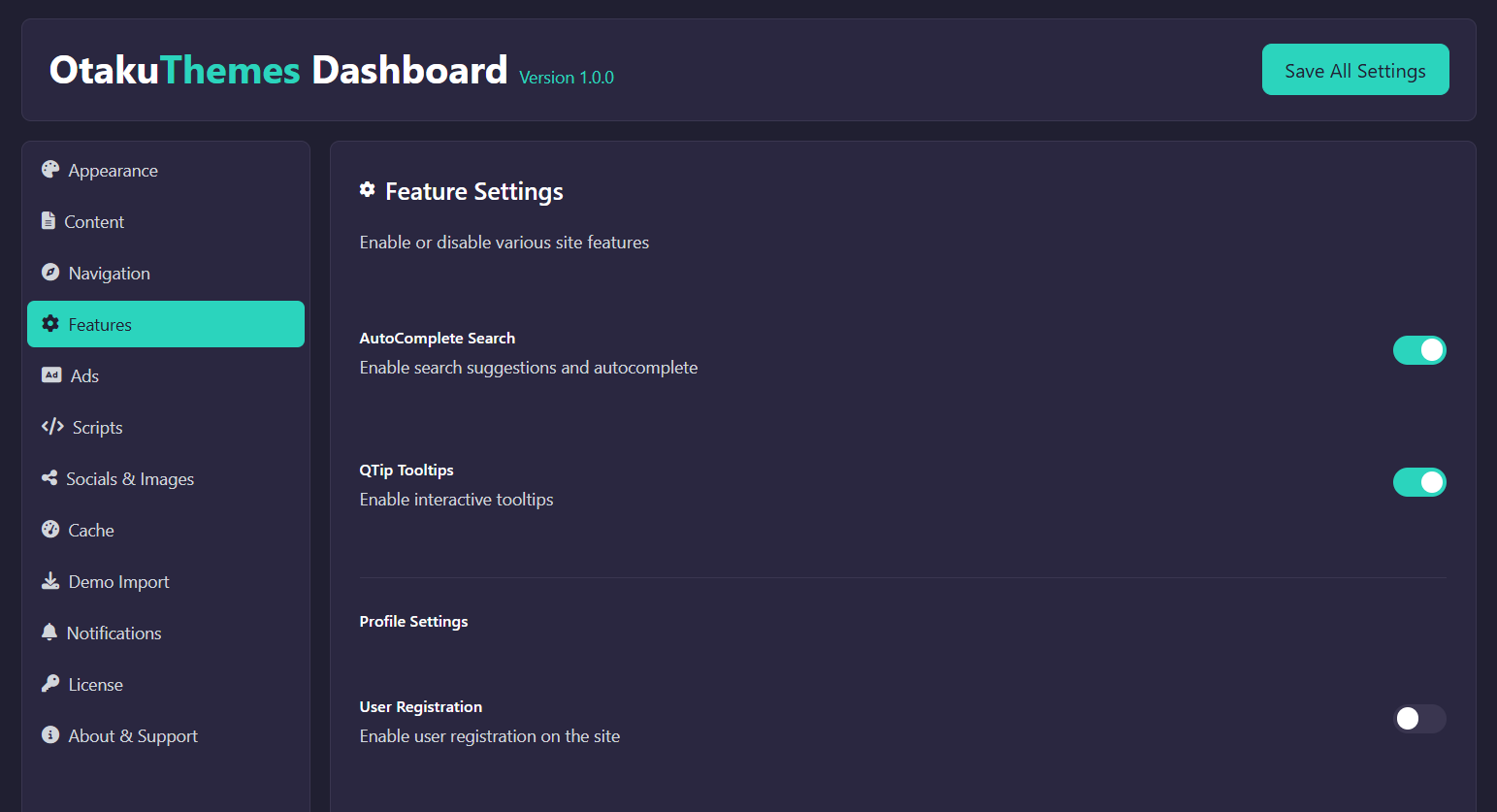 OtakuThemes Dashboard — Features (Page 1)
User Features
| Feature | Description |
|---|---|
| User Registration | Allow visitors to create accounts on your site |
| Watchlist | Let users save anime to a personal watchlist |
| Favorites | Let users mark anime as favourites |
| Watch History | Automatically track episodes users have watched |
| Ratings | Allow users to rate anime entries |
Disabling any of these hides the corresponding UI elements and disables the backend functionality for that feature.
Page 2 — Profile & Front Page Settings
Configure user profile page behaviour and front page display options.
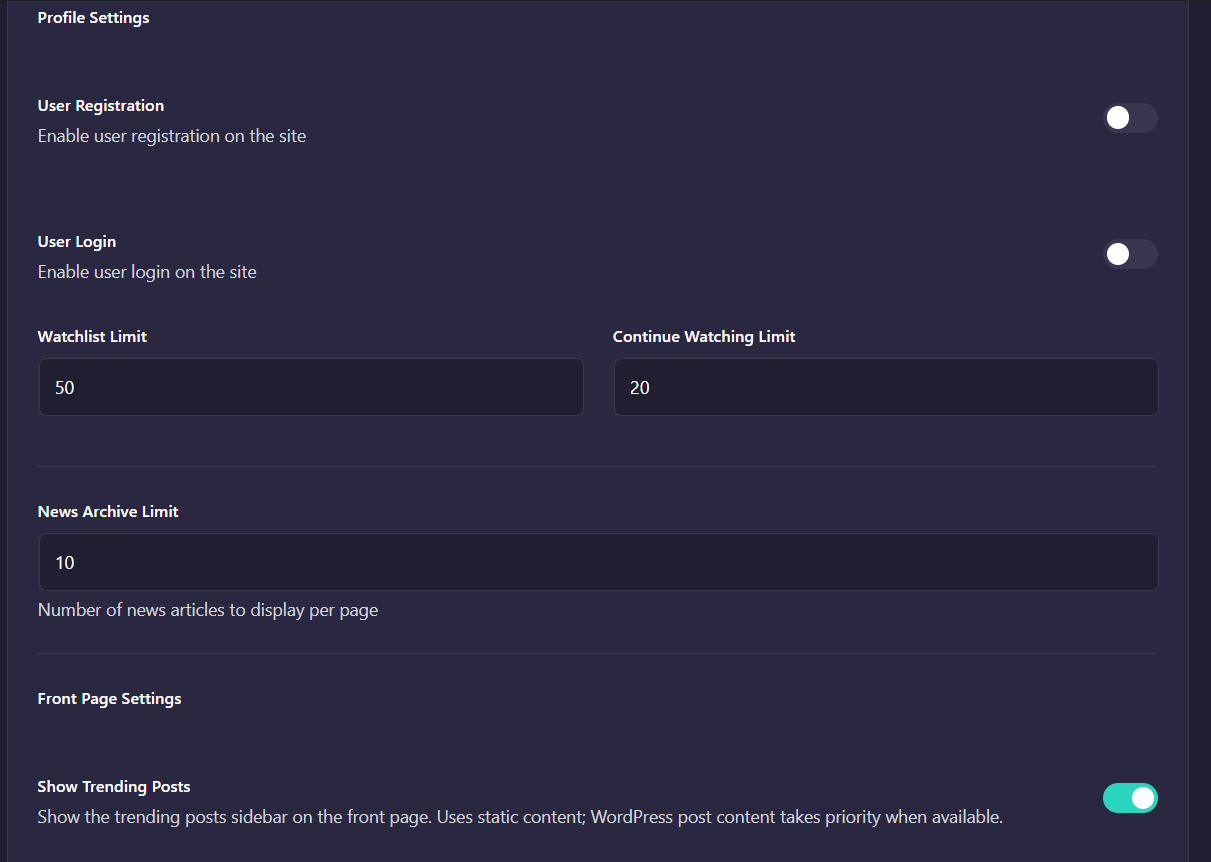 OtakuThemes Dashboard — Features (Page 2)
Profile Settings
- Profile Page Visibility — Control whether public user profile pages are visible
- Profile Fields — Toggle which fields appear on profile pages (bio, social links, stats, etc.)
Front Page Settings
- Control which content sections appear on the front page
- Configure the display order or visibility of homepage sections
Page 3 — Schema & Image CDN
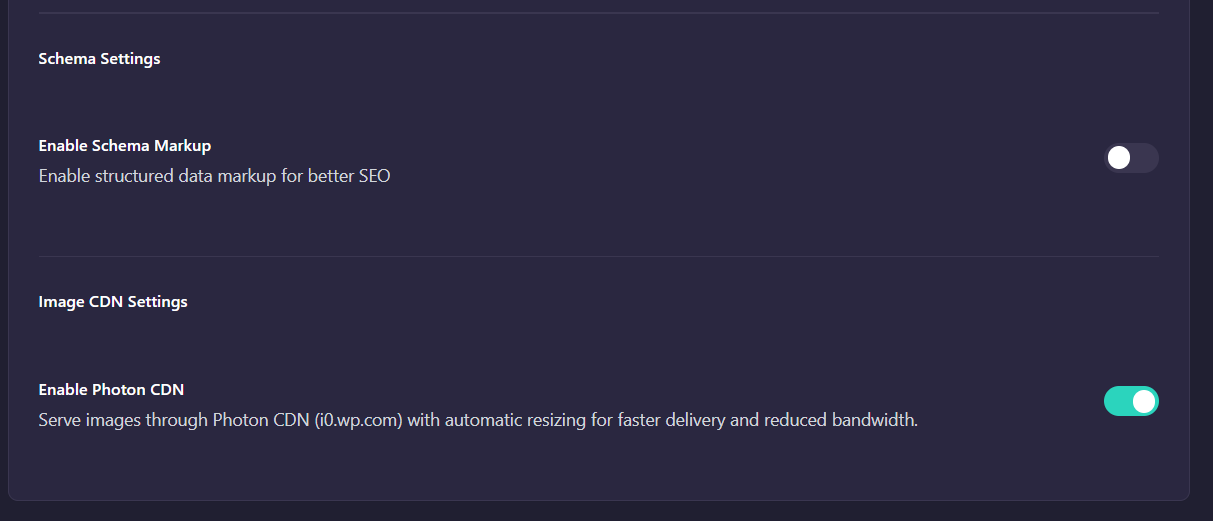 OtakuThemes Dashboard — Features (Page 3)
Schema Markup
Enable Schema.org structured data for your anime content. This helps search engines understand your content and can improve rich result appearances in Google Search.
- Enable Schema — Toggle structured data output for anime pages
- When enabled, HiAnime outputs
VideoObject,TVSeries, and related schema types on anime and episode pages
Image CDN
If you're serving images through a CDN (Content Delivery Network):
- Enable Image CDN — Toggle CDN URL rewriting for image assets
- CDN URL — Enter your CDN base URL (e.g.
https://cdn.yoursite.com)
When enabled, HiAnime rewrites image URLs in templates to use your CDN instead of your origin server, reducing load and improving global delivery speed.
Enter the CDN URL without a trailing slash. Example: https://cdn.yoursite.com
Tips
The Features tab has multiple pages. Make sure to click Save on each page before navigating to the next one — unsaved changes will be lost when switching pages.
After enabling or disabling features, go to the Cache tab and clear the cache so the changes take effect immediately across all pages.